

Flow / Screen Examples
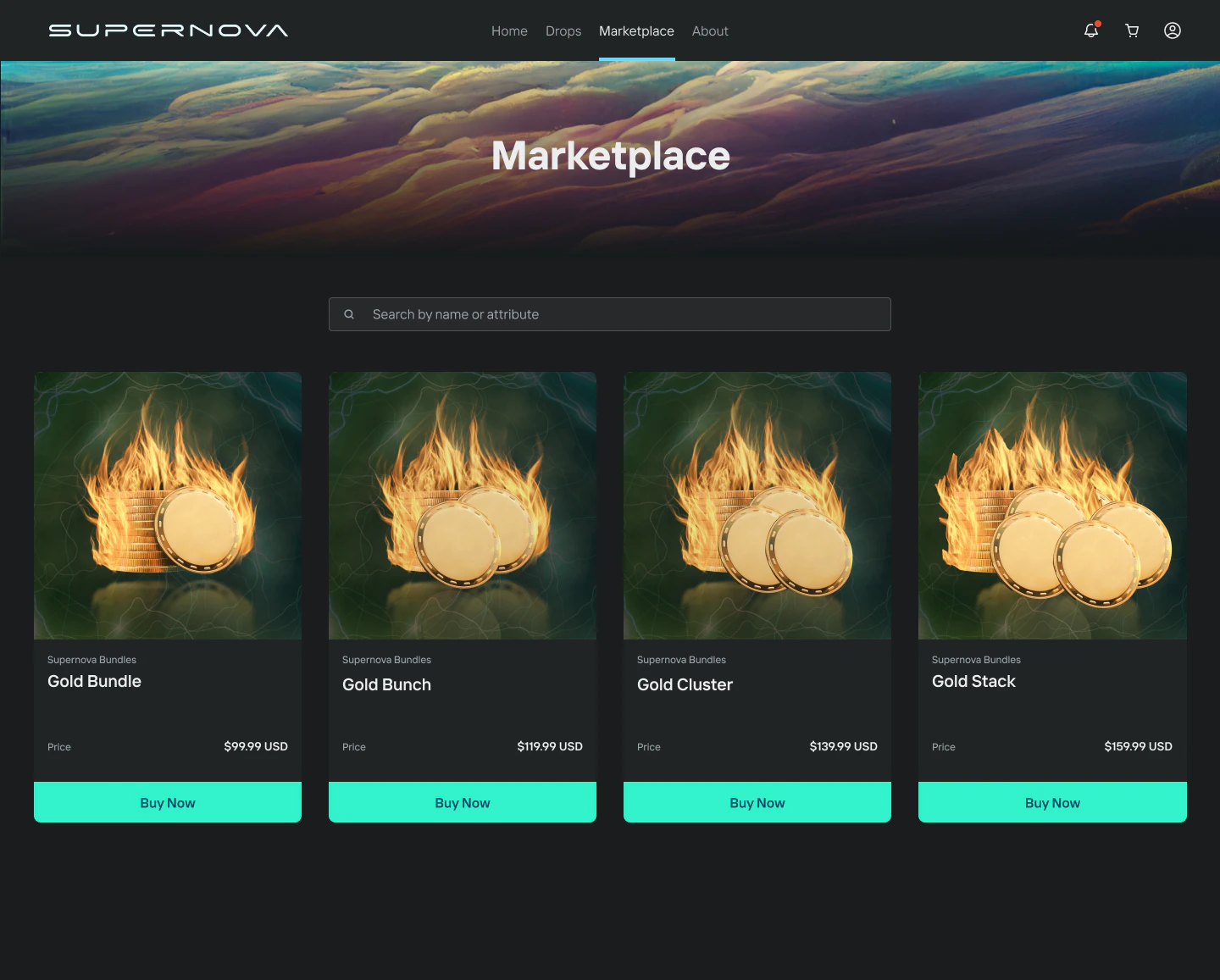
This scenario assumes the user chooses to pay with crypto (e.g. Ethereum via Coinbase Wallet).Marketplace / Game The user views items for sale in the marketplace or game. Clicking to purchase opens the Forte Payments widget.
Screen 1 — Email Verification The user is presented with an email verification screen. They must verify that they own the email address associated with their marketplace or game account.
If
email is not passed in the payment intent request (and wallet is passed instead), the user will be prompted to enter and verify their email on their first payment. That email is then linked for all future sessions.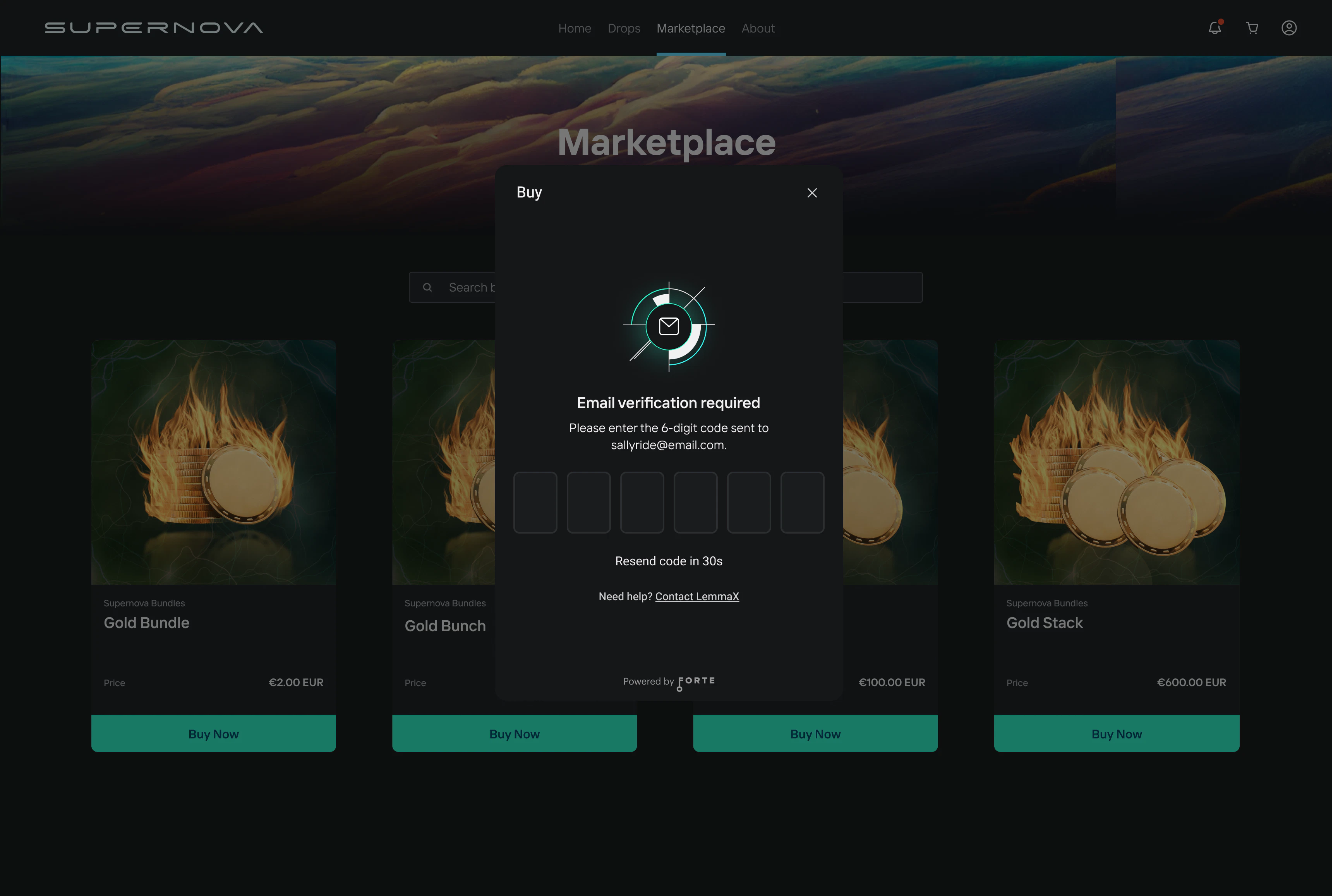
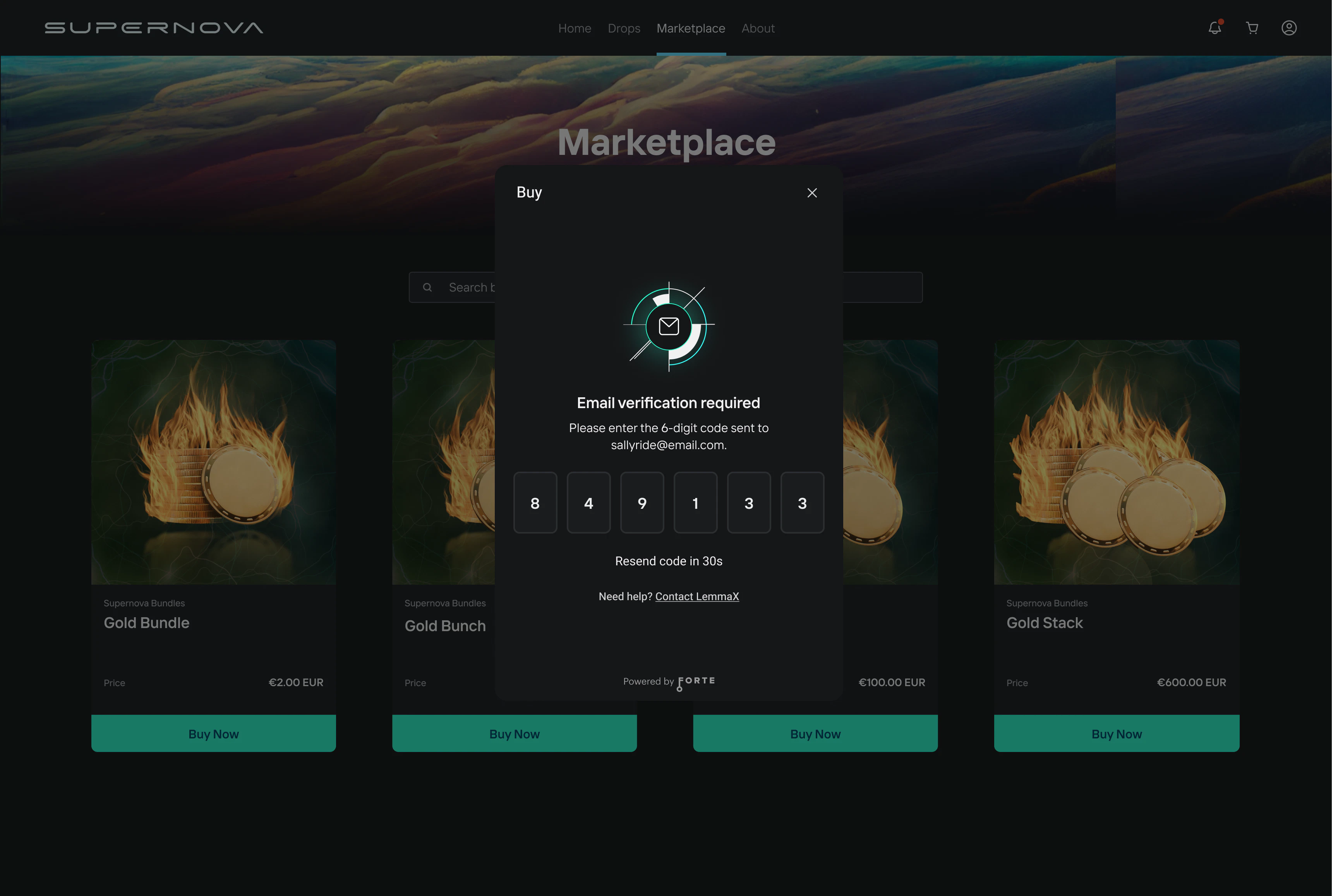
In the sandbox environment, use OTP code 947293 to bypass email verification. Emails are only sent in the production environment.
Screen 2 — OTP Entry The user enters the verification code sent to their email to complete email verification.
Screen 3 — Purchase Summary The user is presented with a purchase summary showing transaction details and the appropriate crypto conversion rate. They select Pay with crypto to continue.
Screen 4 — Transaction Components The user sees a breakdown of the transaction:
- Buying — the item being purchased
- Sending to — the destination account receiving the asset
- Paying with — the crypto payment method
Screen 5 — Connect Wallet The user is presented with the option to connect a MetaMask or Coinbase wallet.
Screen 6 — Wallet Sign-In The user completes the wallet connection by signing in through their browser extension or wallet app (e.g. Coinbase Wallet).
Screen 7 — Transaction Review After connecting a wallet, the user is presented with the complete transaction summary and clicks Confirm to proceed.
Screen 8 — Sign Message The user is prompted to Sign a message within their wallet confirming their address. The user receives an email indicating that their purchase has been initiated.
Screen 9 — Approve Transfer The user is prompted to Approve the transfer of crypto funds from within their wallet. After approval, the widget listens for on-chain payment confirmation. The user can inspect the transaction status via the See in Etherscan link.
Screen 10 — Confirmation Once the payment is confirmed on-chain, the user is presented with a success screen. If the payment could not be processed, the user is shown a failure screen.
For common crypto payment issues — including gas errors and wallet timeouts — see Testing.